Remote
Smart Remote Monitoring –
Anytime, Anywhere
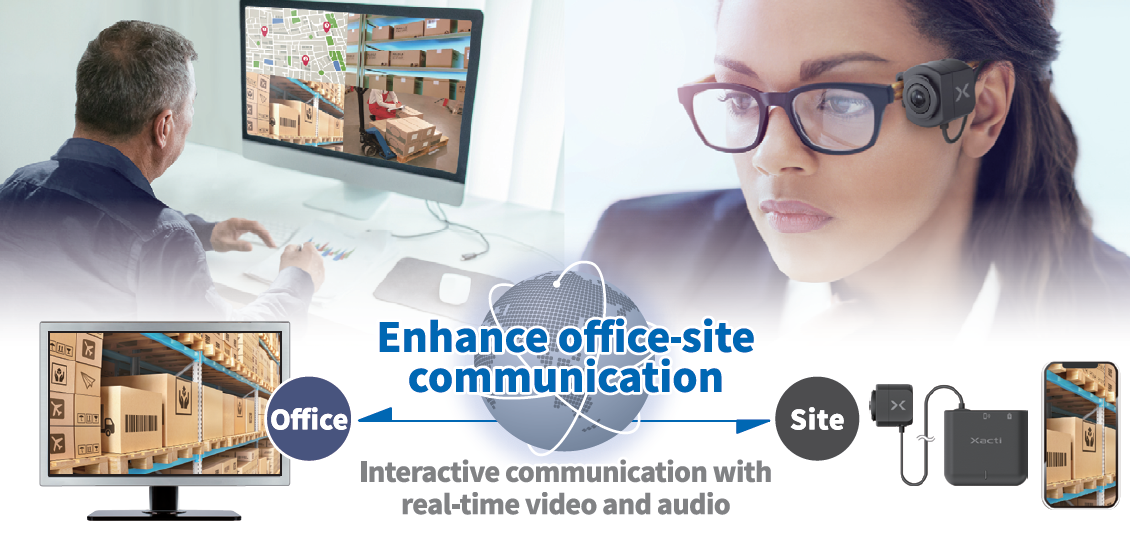
Product introduction video
Product introduction
-
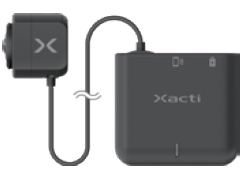
Product name CX-WL100 External
dimensions【Camera head】
25*34*34(mm)
【Main unit】
66*12*60(mm)Weight About 29.5g
(camera head only, cable not included)Dustproof/
waterproof
performanceIP67 (camera head only) - Electronic gimbal function
- Ultra-light camera head
- Can be attached to glasses, cap, shirts, etc.
-

Product name CX-WE100 External
dimensions37*69*92(mm) Weight about 140g(Cable included) Dustproof/
waterproof
performanceIP65(Excluding USB plug part) - Electronic gimbal function
- 185° wide-angle lens
- Head-mounted type
-

Product name CX-WE300 External
dimensions50*105*53(mm)
(Does not include lens convex part)Weight about 170g(Cable included) Dustproof/
waterproof
performanceIP65
(Excluding USB plug part)- Electronic gimbal function
- 185° wide-angle lens
- Chest-mounted type
-

Product name CX-MT100 External
dimensions89.6*89.6*46.0(mm)
(Excluding protrusions)Weight about 120g
SOLABLE Trading will distribute this product and solution to
overseas market.
For details on domestic sales, please visit the Xacti WEB site.
FAQ
Frequently asked questions
- What happens if I try to connect the camera wirelessly to my smartphone and it connects to an another smartphone that He/She has connected to before and cannot connect to my smartphone?
-
When connecting the camera with several smartphones, please switch off the automatic Wi-Fi connection of the smartphone that has been connected before and connect another smartphone. This is caused by prioritizing connections to smartphones that have been connected wirelessly before, and if you want to prioritize wireless connections to new smartphones, the above measures are necessary.
- How much traffic is required during real-time video transmission (on the smartphone side)?
-
It depends on the transfer speed setting. It may vary, but a rough guide is shown below.
And the target transfer rate can be set in the smartphone app (XactiViewerPro/XactiViewer), "Settings" > "App operation settings" >"Remote support function " > "Target transfer rate (Mbps)".
- 3 Mbps: 1.5 GB/1 hour
- 1.5 Mbps: up to 1 GB/1 hour
- 1.5 Mbps: up to 1 GB/1 hour - 1.5 Mbps: up to 1 GB/1 hour - CX-WL100W wireless connection does not connect.
-
Please check the follow steps first.
1) Please check that the Wi-Fi dongle and USB adapter are attached to the camera body.
2) Please check that the mobile battery is switched on.
3) Please check that the LED on the Wi-Fi dongle is blinking. If it is not blinking, please unplug it and then plug it back in.
4) Please check that the camera is connected to Wi-Fi from the Wi-Fi setting menu on your smartphone. If the connection is not made, select the SSID of the camera from the Wi-Fi settings menu.
5) Please check that the app operation setting of the smartphone app (XactiViewerPro/XactiViewer) is set to “Wireless connection”.If the live view (video) does not appear on the smartphone app (XactiViewerPro/XactiViewer) after trying steps 1) to 5), please contact us.
*When using the camera with multiple smartphones, turn off the automatic Wi-Fi connection on the smartphone.
*When using a Wi-Fi dongle with a 2.4 GHz band setting, there is a possibility of radio interference by general devices, resulting in disturbed or interrupted images. It is recommended to use the 5 GHz band indoors. - I don't know how to view or set up multiple cameras from the PC at office.
-
By registering the information of cameras in the web application (XBP Manager) , "Camera Management" > "Camera List" > "ADD CAMERA", it is possible to check the videos from multiple cameras.
About demo sets sales
- I want to check out an actual Xacti LIVE (CX-WL series) and XBP for purchase consideration.
-
We have demo sets for sale. Please contact us and we will prepare a quotation.
Various inquiries
- What is the file size of the video and still images recorded by the camera?
-
The video is designed to be saved every 10 minutes. The standard is as follows, although it may vary depending on the subject being filmed.
- FHD 30fps: from 400 to 430MB/10 minutes, from 2.0 to 2.5GB/1 hour
- FHD 10fps: from 180 to 200MB/10 minutes, from 1.1 to 1.2GB/1 hour
- HD 30fps s: from 360 to 380MB/10min, from 1.9 to 2.3GB/1hour
- HD 10fps: from 140 to 160MB/10min, from 0.8 to 1.0GB/1hour
- HD 5fps: from 70 to 80MB/10 min, from 0.4 to 0.5GB/1 hour
- VGA 30fps: from 220 to 230MB/10min, from 1.3 to 1.4GB/hour
- VGA 10fps: from 130 to 140MB/10min, from 0.8 to 0.9GB/hour
- VGA 5fps: from 65 to 68MB/10min, approx. 0.4GB/hour
- For still images, the size is generally less than 1 MB.*These are reference values and may not always be the same.
- I have started streaming real-time video on my smartphone, but the video is not displayed on the web app "XBP Manager", that means the app displays a black screen only. What should I do?
-
Refer to the following step.
1. The connection procedure is correct
2. The serial number (camera settings) of the camera registered in XBP Manager is correct
3. Whether the same problem occurs when using an external network.
*In the internal network, the use of the one-touch connection (video acquisition) may be restricted by the security settings.
If the problem cannot be solved after checking the above, please contact us. - What should I do if the error message "This accessory requires too much power" appears on my iOS device (Lightning connector)?
-
Please make sure that the connected mobile battery is supplying power and that the iOS device is charging.
If the iOS device is not charging, check that the mobile battery is ON/OFF or reconnect it so that it is charging.
Also, if the mobile battery's battery level is low, it may display an insufficient power message. If this happens, please charge the mobile battery. - An error message (E●●) is displayed on the smartphone application (Xacti Viewer Pro) screen. How do I deal with this? – ex.1. "The maximum recording time limit has been reached.(E30) " is displayed and recording is stopped?
-
When the maximum recording time has been set, recording will automatically stop.
It is possible to change the recording time setting from the app, so please set it according to the time of use.The setting can be changed in the Xacti Viewer Pro app under "Settings" > "App operation settings" > "Recording settings" > "Auto stop time".
*Note that Xacti Viewer cannot record, so this error will not be displayed. - An error message (E●●) is displayed on the smartphone application (XactiViewerPro) screen. How do I deal with this? – ex.2. Even though the smartphone storage is sufficiently free, the message "The capacity has reached the upper limit. (E40)" is displayed and I cannot shoot video.
-
Smartphone storage may differ between the display and the actual situation. In some cases, the actual space may not yet be free after the user has deleted data. In other cases, sufficient space may not be available due to temporary files or other influences.
The application ensures that the error occurs when there is no more than 5% remaining recording, but if a capacity error occurs despite sufficient storage space being available, please restart the system.
*Note that Xacti Viewer cannot record, so this error will not be displayed. - What should I do if I cannot upload the videos I have taken to the dedicated server (Xacti Server)?
-
The following are required for uploading.
- XBP Login on the smartphone application (XactiViewerPro) must be enabled.
- The upload authority must be granted to the logged-in user.
- The camera must be registered in XBP.
Please note that the service that stores data on a server is optional and requires a separate application/contract. - If some functions on your Android phone suddenly stop working (no live view, no recording, etc.) after using it for a long time, or if you see on the smartphone app (XactiViewerPro/XactiViewer) "No battery power left". (E50)" is displayed and recording is no longer possible.
-
Due to a system control on the Android smartphone side, some of the app functions may become unusable on some devices when the battery capacity of the smartphone falls below approximately 20 to 30% (depending on the device).
Please use Xacti wearable cameras and apps while your phone is fully charged. - The camera (CX-WL100/CX-WE series) is connected to the phone, but the power supply flashes red, then goes off and does not turn on.
-
The phenomenon where the LED flashes red for a few seconds and then goes off occurs when there is no remaining battery power connected.
Please fully charge the mobile battery or the smartphone you want to connect, then reconnect it and check if the LED continues to light up. - Suddenly the camera turns OFF, the LED on the unit does not light up.
-
There may be insufficient power. Please fully charge the mobile battery or other power source to be connected, then connect it to the phone and check if the power supply turns ON.
- I want to know how to use a wearable camera (CX-WE series) with an Android phone for extended periods of time.
-
When using an Android smartphone for extended periods of time, we recommend using a USB hub and adding a mobile battery.
Please note that your Android smartphone, USB cable, and mobile battery must be compatible with the USB Power Extension Standard "PD".
*ex. Compatible USB hub (PD compatible): ELECOM U3HC-A423P5 - How do I connect the CX-WE series to an iOS device with a USB port (iPhone 15, iPad, etc.)?
-
For connection to iOS devices with a USB Type C terminal, please use a USB A to C conversion cable.
- What should I do if the microphone cannot be used with the smartphone app (XactiViewerPro/XactiViewer)?
-
Please check the app's permission settings.
1. Please set the smartphone app (XactiViewerPro/XactiViewer) microphone authorization to "ON" (allow) in the smartphone device's "Settings" > "Microphone".
2. Please change the "Microphone settings" in the smartphone app (XactiViewerPro/XactiViewer) to "Camera microphone" in "Settings" > "App operation settings" > "Recording settings". - What should I do if GPS is not available in the smartphone app (XactiViewerPro/XactiViewer)?
-
Please check the app's authorization settings.
[For iOS devices].
1. on the smartphone device, go to "Settings" > "Privacy and security" ("Privacy" depending on the OS version) > "Location services" and turn "ON". 2. on the "Location services" setting screen that has been turned ON, tap the smartphone app (XactiViewerPro/XactiViewer), set the app's location permission to "In use of this app" ("Allowed only when this App is in use" depending on the OS version) and set "Exact location" should also be set to "ON".
3. in the smartphone app (XactiViewerPro/XactiViewer), go to "Settings" > "App operation settings" > "Background operation/GPS settings" and select either "Background ON/GPS ON" or "Background OFF/GPS ON".[For Android devices.]
1. go to "Settings" on the smartphone device and set "Location (GPS) " to "ON".
2. long-press the phone app (XactiViewerPro/XactiViewer) icon, go to "App info", "Permissions" (Allow depending on the device), "Location information" and select "Allow only while using app" (*The procedure may differ depending on the device model).
3. in the smartphone app (XactiViewerPro/XactiViewer), go to "Settings" > "App operation settings" > "GPS settings" > "Always ON". - What should I do if the video is interrupted when Bluetooth earphones are connected to the smartphone during real-time video streaming?
-
If the connection to the camera is set up wirelessly in the 2.4 GHz band, there is a possibility of radio interference between Wi-Fi and Bluetooth.
Radio interference can be avoided by connecting Wi-Fi at 5 GHz; use a wireless LAN child device that supports 5 GHz and select the 5 GHz band (outdoor use of 5 GHz is prohibited). For more information, please contact us. - Every time I put the camera in sleep mode (screen off), the real-time video streaming/video recording is interrupted, what can I do about it?
-
The phone application may not be set up correctly.
[iOS device]
"Background ON/GPS ON" in "Settings" > "App operation settings" > "Background operation/GPS settings" in the XactiViewerPro app.
[Android devices]
"Always ON" in "Settings" > "App behaviour settings" > "GPS settings" in the XactiViewerPro app. - What should I do if the iPhone is wired to the camera but the camera does not start?
-
For wired connection to iPhone (Lightning), the use of a camera adaptor (Lightning - USB 3 Camera Adaptor: MX5J3AM/A) provided by Apple is recommended. If this is not the recommended product, the camera may not be activated.
- What should I do if I want to take video or still images with Xacti camera?
-
To record video and still images on your phone, use the smartphone application XactiViewerPro.
Video and still image recording is not possible with XactiViewer. - What should I do if the inside of the camera lens is fogged up?
-
If condensation occurs, discontinue use immediately.
Move the camera to a room temperature environment (approx. 26 °C indoors) and adapt it to the ambient temperature.
You can also store the wearable camera with silica gel and the camera in a plastic bag with a zip to prevent the lens from fogging up. - Why are recorded video files split?
-
The specification is that recorded files are split every 10 minutes.
However, as the files are split every 10 minutes starting from 00 minutes every hour, video files that are actually less than 10 minutes long are generated.
Customers who have subscribed to the 'Save to Server' option can merge the files from the web application (XBP Manager) after uploading them to the dedicated server (Xacti Server). - Can it be used in mountainous areas with poor signal conditions?
-
In mountainous areas, the real-time video distribution and viewing function may be difficult to use due to the radio wave environment.
However, it is possible to record on-site video and upload it to a dedicated server (Xacti Server) when the radio environment improves, enabling remote confirmation of the on-site video. It is also possible to propose the introduction of Starlink or other equipment to improve the radio environment. For more information, please contact us.
*Use of the dedicated server (Xacti Server) requires an optional contract for the 'Server Save' function. - What should I do if I want to use the mobile battery at the same time when connecting to my Android phone, but the camera connection is disconnected when the mobile battery is connected?
-
To use the camera and mobile battery at the same time, the OS of the Android smartphone must be Ver. 13.0 or higher. Please check the OS version of your smartphone.
- I don't know how to change the various camera settings.
-
It can be changed using the free smartphone app (XactiViewerPro/XactiViewer) and the free Windows app (XactiViewer for Windows).
- What should I do if I cannot log in to the smartphone application(XactiViewerPro/XactiViewer)?
-
The settings may be incorrect. Please check the following settings.
- The smartphone must be connected to the network.
- User rights: " One Touch (Mobile) " or " One Touch (Web+Mobile) " must be set.
- Camera settings: " Allow one-touch connection " must be set to " ON ".
If you still cannot log in after trying the above, please contact us. - The main unit of the Xacti LIVE (CX-WL series) sometimes gets hot, is this OK?
-
Depending on the operating environment, the temperature of the "main unit" may rise.
This product is designed so that even if the temperature rises, the device will automatically stop when it reaches a certain temperature, thus ensuring safe use.
And be sure to wear the protective case. - Cannot connect camera with Android OS Ver. 10 phone, no video.
-
Due to the unstable operation of the regular application on Android OS Ver. 10, an application for Ver. 10 is available.
Please contact us. - While viewing real-time video (PC side), when connecting from multiple locations, the video turns black or changes to a black screen.
-
The multi-access function (viewing of a single on-site video from multiple headquarters locations) allows users to access the web application (XBP Manager) simultaneously under separate accounts and view the on-site video. If multiple people access the same user account and try to view on-site footage, the footage will appear black and will not be displayed.
- During real-time video streaming on my phone, the connection drops after about 30 seconds. I need to know the cause and how to deal with it.
-
This phenomenon may be caused by insufficient smartphone specifications.
Even if your phone does not have sufficient specifications, you may be able to use it by reducing the load through the settings. - What should I do if I log in to XBP using the smartphone app (XactiViewerPro/XactiViewer), but the real-time video streaming [Start button] does not appear on the live-view image?
-
It is possible that you were logged in but your internet connection was cut off due to the communication environment and you could no longer maintain your logged-in status, which is equivalent to logging out. Please log in again. Please also make sure that the following conditions are met.
- The user and the camera must both be authorized to distribute real-time video.
- The connection to the camera must be correct.
*In particular, in the case of Android smartphones, after the wireless connection with the camera, the internet connection may not be established due to incomplete setting procedures. - When you connect the camera to your phone and try to make a one-touch connection, the message "Connection could not be made. Please check the communication status." is displayed?
-
Please check that you are connected to the Internet and that the following conditions are met.
- The serial number in the camera settings on the PC (XBP Manager) must be correct.
- The smartphone must be logged in. - What should I do if I log in to XBP with my phone and try to upload the shooting data to XBP, but the message 'You do not have authorization' is displayed and I cannot upload the data?
-
The authorization settings may not have been set. Please check that both user and camera are authorized to upload data.
Also, please check the following conditions are met.- You must be logged in.
- The connection to the camera is correct.
*In particular, in the case of Android smartphones, after the wireless connection with the camera, the internet connection may not be established due to incomplete setting procedures. - What should I do if I cannot connect my smartphone [iPhone (iOS device)/Android device] to the wearable camera?
-
Please check the following.
【Wireless connection (common to iOS and Android)】
Please check in the order of 1), 2), 3), 4) and 5).
1) Check that the mobile battery is switched ON.
2) Whether the LED on the camera is blinking or lit.
3) Whether the LED on the wireless LAN child unit is blinking?
4) Whether the smartphone and the camera are connected via Wi-Fi using the smartphone setting app?
5) Whether the app operation setting of the smartphone app (XactiViewerPro/XactiViewer) is set to wireless connection?
*When using the camera with multiple smartphones, turn off the automatic Wi-Fi connection on the smartphone.
*If you are using a wireless LAN child unit with a 2.4 GHz band setting, the signal interference caused by general devices may result in disturbed or interrupted images. We recommend using the 5 GHz band indoors.【Wired connection [iOS device (Lightning terminal)】
For iOS devices with USB Type C terminal, see 【For wired connection (Android devices)】.
Please check 1), 2) and 3) in this order.
1) Check that the smartphone is charging when the camera is connected (mobile battery is in the "ON" state).
2) On your iOS device, go to "Settings" -> "Privacy and Security" (or "Privacy" depending on the OS version) and check that "XactiViewerPro/XactiViewer" under "Local Network" is set to "ON"
3) Check whether the problem occurs when you change the connected device (adapter) to another one, whether the Lightning connector is dirty, and whether VPN settings/smartphone security settings (MDM) are configured.【Wired connection (Android device)】
Please check in the order of 1) and 2).
1) Check if the camera's LED is blinking or lit.
* If the camera's LED is not blinking or not lit, the camera is not receiving power.
2) Does the problem occur if you change the connected device (adapter) to a different one?If you still cannot connect after trying the above, please contact us.
- What should I do if the smartphone app (XactiViewerPro/XactiViewer) does not show Live View and does not proceed from " Please wait "?
-
Please check the following.
【Wireless connection (common to iOS and Android)】
Please check in the order of 1), 2), 3), 4) and 5).
1) Check that the mobile battery is switched ON.
2) Whether the LED on the camera is blinking or lit.
3) Whether the LED on the wireless LAN child unit is blinking?
4) Whether the smartphone and the camera are connected via Wi-Fi using the smartphone setting app? 5) Whether the app operation setting of the smartphone app (XactiViewerPro/XactiViewer) is set to wireless connection?
*When using the camera with multiple smartphones, turn off the automatic Wi-Fi connection on the smartphone.
*If you are using a wireless LAN child unit with a 2.4 GHz band setting, the signal interference caused by general devices may result in disturbed or interrupted images. We recommend using the 5 GHz band indoors.【Wired connection [iOS device (Lightning terminal)】
For iOS devices with USB Type C terminal, see 【For wired connection (Android devices)】.
Please check 1), 2) and 3) in this order.
1) Check that the smartphone is charging when the camera is connected (mobile battery is in the "ON" state).
2) On your iOS device, go to "Settings" -> "Privacy and Security" (or "Privacy" depending on the OS version) and check that "XactiViewerPro/XactiViewer" under "Local Network" is set to "ON"
3) Check whether the problem occurs when you change the connected device (adapter) to another one, whether the Lightning connector is dirty, and whether VPN settings/smartphone security settings (MDM) are configured.【Wired connection (Android device)】
Please check in the order of 1) and 2).
1) Check if the camera's LED is blinking or lit.
* If the camera's LED is not blinking or not lit, the camera is not receiving power.
2) Does the problem occur if you change the connected device (adapter) to a different one?If you still cannot connect after trying the above, please contact us.
- If I use the telephone function (making and receiving calls) during Remote Support (real-time video streaming) or recording with XactiViewerPro, will remote assistance or recording be interrupted? Also, will the sound during the call be heard by the recipient or recorded in the recording data?
-
If the telephone function is used during Remote Support, only the video image continues to be transmitted and the audio is not heard by the recipient (the audio transmission is resumed after the call has ended).
When recording with XactiViewerPro, recording is not interrupted and only the sound from the camera's microphone (the content of the call) is recorded in the recording data. Depending on the content of the call and the situation, take measures such as temporarily stopping recording (and restarting recording after the call has ended). - Are there any precautions to take when updating software (firmware)?
-
Do not do the following while updating the camera software:
- Disconnecting the camera
- Quitting the app
- Turning off your smartphone
Please note that any actions that disrupt the connection between the camera and smartphone, such as these, may cause the camera to malfunction.
Functions and specifications
- Can it be used abroad?
-
Although this unit is designed for use in Japan, it can also be used overseas.
However, when using the unit abroad, it must be used in accordance with local laws and regulations, etc. Please contact us with the name of the country/region where you plan to use the unit and the intended use. - What are the weight and dimensions of the camera?
-
CX-WL100
-Weight (main parts)
・CX-WL100*1: approx. 92.0 g
*1: Camera head + main unit (including cable)
・Protective case: approx. 83.5 g
・USB cable: approx. 16.5 g
・Wireless LAN child unit: approx. 2.0 g
・USB adapter: approx. 6.0 g
Total: approx. 200 g
-Dimensions (CX-WL100 main unit only)
Camera head: 25 x 34 x 34 mm (excluding protruding parts)
Main unit: 66 x 12 x 60 mm (excluding protruding parts)CX-WE100/CX-WE300
-Weight.
CX-WE100: approx. 140.0 g *including cable
CX-WE300: approx. 170.0 g *including cable
-Dimensions.
CX-WE100: 37 x 69 x 92 mm
CX-WE300: 56 x 105 x 53 mm (not including lens convexity) - What is XBP?
-
XBP is Xacti's unique 'application service with all the essential functions for smooth Remote Support'.
For more information, please check this video.
https://youtu.be/huvnjOjJrJ0 - What is the traffic volume when using generic web conferencing tools/applications?
-
Sorry, we cannot answer this question as it depends on the conferencing tool/application you are using.
- Can the camera itself record images? / Is SD card recording possible?
-
Both the CX-WL and CX-WE series cameras do not have built-in recording media and record video to the storage on the smartphone or PC to which they are connected. Therefore, it is not possible to record video directly to an SD card. However, it is possible to copy recorded video to an SD card afterwards.
- Can it be used with general web conferencing apps/tools (e.g. Teams/ZOOM)?
-
The CX-WL Series/CX-WE Series is not recognized as an external camera for the web conferencing app/tool (Teams, Zoom, etc.) on the smartphone to which the camera is connected. It is possible to use the camera by simultaneously using the XactiViewerPro/XactiViewer smartphone app and sharing the camera image projected on the XactiViewerPro/XactiViewer on screen with the web conferencing app/tool. However, XBP functions such as Smart Control and Super Zoom are not available when using general-purpose web conferencing applications/tools.
- What is the camera's operational lifetime?
-
As there is no battery in the camera itself, the operating time depends on the battery capacity of the smartphone or mobile battery.
The reference continuous operating time when using a 5,000 mAh mobile battery and the following smartphones is as follows, although it varies depending on the operating environment and usage conditions.
[iOS] iPhone SE3
Wired connection: approx. 2 hours 50 minutes
Wireless connection: approximately 2 hours.[Android] AQUOS Sense7
Wired connection: approx. 6 hours 45 minutes
Wireless connection: approx. 5 hours*Using mobile battery ELECOM DE-C37-5000
Measured under real-time video streaming only (no recording, smartphone screen off).However, please note that these are reference values as they will vary depending on the smartphone battery status and when apps other than XactiViewerPro/XactiViewer are running.
- Where is the power button on the camera?
-
Both the CX-WL and CX-WE series do not have a power button on the main unit; as they are USB powered devices, power is switched on by plugging the camera's USB cable into the USB connector of the smartphone or mobile battery that is the power supply source.
However, the camera will not switch ON if the necessary power is not supplied by the other device supplying the power source. - Is there a web application?
-
Xacti's web app includes the XBP Manager, which allows you to use various headquarters-side functions of XBP.
- Is there a smartphone app available?
-
There are two Xacti smartphone apps, XactiViewerPro/XactiViewer, which are used to connect to the camera.
Both can be downloaded free of charge. - Can they be used in environments where explosion protection is required?
-
Although not explosion-proof, the CX-WL and CX-WE series have acquired the international safety standard IEC 62368-1. As a result, there are examples of installation in service stations and oil refineries, some of which are explosion-proof areas.
However, the use of non-explosion-proof equipment in explosion-proof areas at service stations and oil refineries differs according to local authorities, so customers should check with their local fire department. - I would like to know how to deal with the software (firmware) update error 'ID04 frozen at 50% of display' during camera updates in the future.
-
If an error occurs, disconnect the camera from the smartphone and perform a software update on the PC.
- Do I need to install a driver when connecting the camera to a smartphone wirelessly?
-
Driver installation is not required.
- Is it possible to connect the camera directly to a Wi-Fi router without using a smartphone?
-
Both the CX-WL and CX-WE series cannot be connected directly to a Wi-Fi router to distribute video.
The specification is to connect the camera to a smartphone (or tablet) and use an internet connection (LTE or Wi-Fi) to distribute video. - How do I connect my phone and camera wirelessly?
-
The communication method for wireless connection of the CX-WL series camera to a smartphone is Wi-Fi connection. Wi-Fi connection is enabled by connecting the Wi-Fi dongle to the camera main unit.
*The CX-WE series cannot be connected wirelessly. - Can real-time video be viewed on an iPad or tablet other than a PC?
-
Real-time video can be viewed on tablets and smartphones such as iPads in addition to PCs, but the layout may be broken. Please understand in advance.
- Can it be connected to a smartphone/PC?
-
The images can be checked by connecting the camera's USB cable to a smartphone/PC.
Note that a free smartphone application(XactiViewerPro/XactiViewer) must be installed separately on the smartphone. - Is Wi-Fi or Bluetooth connectivity available?
-
The CX-WL series can be connected wirelessly to a smartphone via a Wi-Fi connection using a wireless LAN child device.
Note that Bluetooth connectivity is not supported. The CX-WE series also does not support Wi-Fi and Bluetooth connectivity. - Are there any problems (e.g. faster deterioration) when working outside in heat, cold, rain or snow?
-
There is no problem when using the camera at the guaranteed operating temperature (-5°C to 40°C). The camera and smartphone may generate heat, but the camera and smartphone are designed to automatically stop operating when the temperature exceeds a certain level, so there is no effect on the human body or the camera or smartphone will not be damaged.
*We cannot guarantee that the camera will not be used at temperatures other than the guaranteed operating temperature. - Is it RoHS compliant?
-
Xacti wearable cameras (CX-WL series / CX-WE series) comply with the 10 substances of the RoHS Directive (Restriction of the use of certain hazardous substances in electrical and electronic equipment).
If you require a Certificate of Non-Use of Environmentally Controlled Substances (RoHS Certificate), please contact us.
- What is the useful life of wearable cameras?
-
The service life of our wearable cameras (CX-WL series / CX-WE series) is 5 years.
- When using the AI Mosaic function of the smartphone app [XactiViewer/Pro], the image is choppy.
-
When the AI Mosaic function of the smartphone app [XactiViewer/Pro] is ON, the frame rate will be lower than when it is OFF.
Please consider using the smartphones recommended by Xacti.
In particular, when using a device other than the recommended ones, the frame rate may be significantly lower than when the function is OFF, depending on the model.
Furthermore, even when using a recommended device, the frame rate may drop when used in a high temperature environment or when the wireless signal environment is poor.